
Creating Your Groupable Account Instructions
- Where to log in to Groupable
- When you are coming from MORI Classic
- When you have never had a MORI Classic or Groupable account
- When you forget your password
Where to log in to Groupable
There is a separate Groupable for each organization using it. Contact your Grand Body if you have questions.
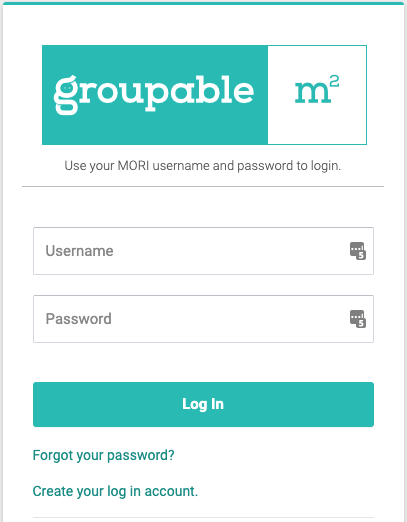
The screen will look like this, usually with your Grand Body's seal or logo:
When you had a MORI Classic or OLP User Account
Use that existing username and password to log in to Groupable.
Follow the Account Recovery process if you are unable to log in. This will work even if you don't know your old username.
If you have never had a MORI Classic, OLP, or groupable|m2 account, please follow the instructions below:
Creating Your Account
Requirements:
There must be a cell phone or email in your Member Record in order to Create and Enable your Account. If you do not have one in your member record, please contact your Parent Organization or Secretary to add this to your Record.
Step One
The first step in using groupable|m2 is creating your account. On your organization's groupable|m2 website, listed above, select Create your log in account.
Have your membership number and date of birth on hand. Step through the screens by filling in the forms and hitting the appropriate button at the bottom. You will need to select a unique username and create a password of your choice for your account, which will need to be a minimum of eight (8) characters and contain a mixture of letters and numbers.
Note
You will be unable to Create Account if there is no email or phone number on your member record, or if you already have an account. If this is the case, you will receive an error message. Please contact your Lodge/Chapter/Club Secretary or Parent Organization to update your information, at which point you can Create Account. If you already have an account, go through the Account Recovery process.
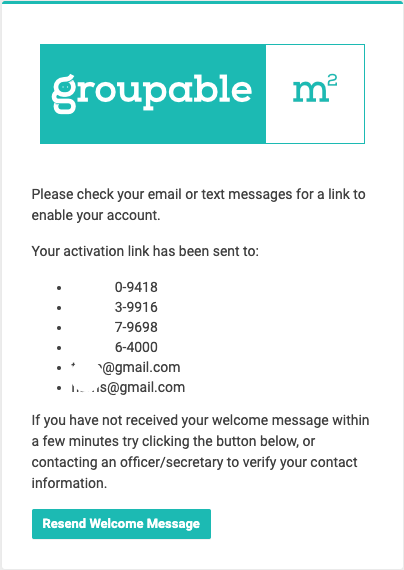
Once you've successfully created your account, you will see the following screen. At this point, a Welcome Message has been sent to all emails and phone numbers in your member record. If you do not receive this Welcome Message by text message or email, check your spam folder for an email from support@moriapp.com. If the email is not there, add support@moriapp.com to your contacts, and please click Resend Welcome Message.
Step Two
Click the link in the Welcome Message to Enable your account.
If you have not received the Welcome Message, check your phone numbers and email listed in the screen above and Resend Welcome Message. Your Parent Organization and your Secretary can also Resend Welcome Message.
If you have a better email or cell phone, contact your Chapter/Club/Lodge Secretary or Parent Organization to update your contact info.
If your contact information is correct, check your junk and spam folders, and add "support@moriapp.com" as a contact.
If you have ever reported support@moriapp.com or support@groupable.com emails as spam, our system will not send you emails. See Why am I not receiving emails? for more details.
Step Three
Logging in for the first time
Once you have Enabled your groupable|m2 account (using the email or text link provided) you will be prompted to Login for the first time from this screen:
You can always access the login screen from Groupable|Connect as well:
Logging in when you forget your password
If at any time you forget your password, click the forgot password? link on this login screen and complete the Account Recovery process.
If you ever get locked out, your Secretary, Assistant Secretary, or even the Grand Body can Send Password Reset.
Please store your new username and password in your browser securely or use a password-storing app like Bitwarden.